Aptivi
WordPress 0.7-gold on Red Hat 9.0 Shrike – the very first version of WordPress
WordPress made its first appearance as a fork of B2, with version 0.7-gold that was released on May 25th, 2003. It was the very first version of WordPress that was considered to be pre-release before the first major version was revealed to the public, which was version 1.0.0, in January 2004. WordPress has since gained popularity, with version v7.0 being the latest version released and v7.1 already in the works.
WordPress 0.7-gold required a version of MySQL, such as 3.23.54, PHP 4, and Apache Web Server. So, we’ll have to install all of them so that the web blog works. Installation of the dependencies and the web blog itself requires that you have some system administration skills before being able to proceed.
You can download this version of WordPress from SourceForge, but we don’t recommend installing it to production environments, as it has many security vulnerabilities that weren’t issues at the time of the release. Instead, we recommend installing WordPress 7.0.
Installing dependencies
Just like B2, this version of WordPress requires a MySQL server already running, alongside the Apache Web Server and PHP 4 packages. So, to install them on Red Hat 9.0 Shrike, you’ll need to navigate to Red Hat Menu > System Settings > Add or Remove Applications.
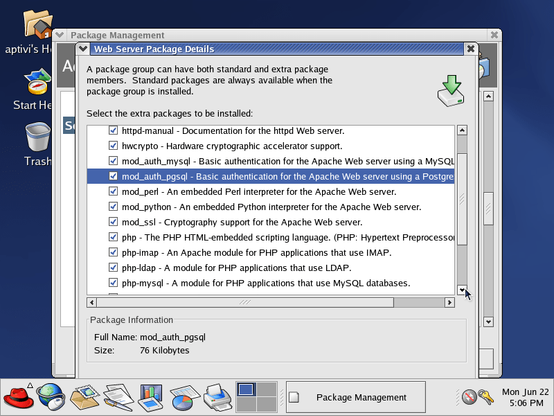
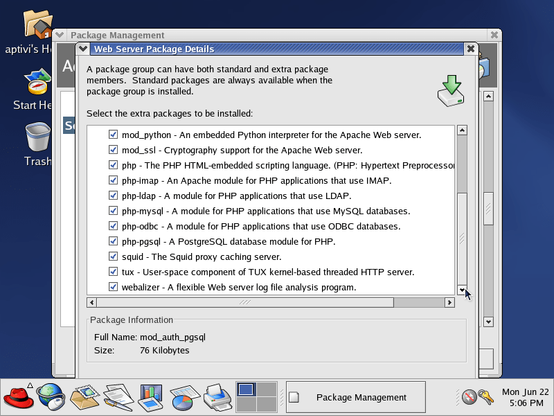
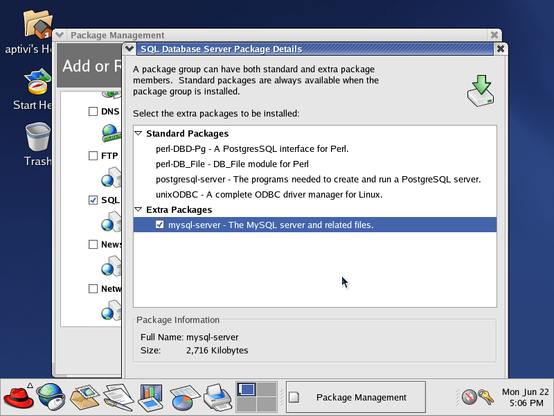
Then, go down to Web Server and SQL Database Server, and select them to be installed. Then, open their details, and tick all the checkboxes in the window that opens.
Afterwards, confirm the changes, and press Update. The below dialog box shows.
Press Continue, and insert the first Red Hat 9.0 disk. After that, let the installation process continue, inserting disks 2 and 3 in the process.
Starting MySQL and Apache
Before continuing, make sure that the Ethernet interface is active. If it’s inactive, try activating it again by opening Red Hat Menu > System Settings > Network, entering your root password you’ve set during the installation.
If everything is going well, start both the MySQL daemon and the Apache web server with the following commands:
$ sudo /etc/init.d/mysqld start $ sudo /etc/init.d/httpd start Afterwards, the below output should look like this:
If you are getting an error saying that your user is not in the sudoers file, log in as root with su -, open visudo, uncomment the line that says %wheel ALL=(ALL) ALL, save the changes, exit the text editor, and log out and log back in to your desktop.
Configuring WordPress
You’ll have to obtain the IP address of your Red Hat 9.0 machine by running /sbin/ifconfig on your terminal. Then, you’ll have to use SSH to copy the wordpress-0.7-gold.tar.gz file to your virtual machine’s home directory from the host.
After that, copy the archive file to the /var/www/html directory, and extract it. It will be extracted to the wordpress folder.
Open vim to the b2config.php file as root, which should look like this:
Afterwards, scroll down to the important variables, such as $siteurl. Edit them, considering that:
$siteurlis supposed to point to your IP address and b2 directory, such ashttp://<ip>/wordpress$blogfilenameneeds to be left alone$blognameand$blogdescriptioncan be specified according to your taste
Next, scroll down to the four MySQL variables, where you need to change those variables as the text file tells you. In our example, we’ve changed $dbname, $dbusername, and $dbpassword.
If you want to be able to use images, edit the two variables, called $fileupload_realpath and $fileupload_url. Make sure that the path exists on your machine, and that the URL is correct.
After that, save the changes. Scroll back up to the MySQL configuration section, open a new terminal tab, and enter the MySQL shell as root. Afterwards, execute the following SQL queries: (notice that there is no CREATE USER SQL query here)
CREATE DATABASE dbname;GRANT ALL PRIVILEGES ON *.* TO dbuser@localhost IDENTIFIED BY 'dbpass' WITH GRANT OPTION;FLUSH PRIVILEGES;
This is necessary as the required entities for the blog will be created during the installation. For example, the queries are shown for our installation:
Installing WordPress
Open your web browser to the virtual machine. You should be able to access wordpress/readme.html under its IP address in your host machine. We did this for more clarity. Please notice that the differentiation of the IP addresses are the result of network instability issues we’re currently experiencing in the virtual machine due to the usage of the wrong network adapter, which we’ll talk about in a later article.
Now, change the URL to point to b2install.php. The installation wizard should run. Follow the steps on the screen, and let it install everything, including the necessary entities to the database.
Signing in
Go to the login page. Notice that you can’t sign in to the admin account that was created due to broken login code. Luckily, it is less buggy than B2 0.6pre2’s login code.
However, the blog site still works.
The test comment is there, too!
To fix this unexpected login error, clear the cookies browser cookies for this IP address like this before signing in again.
Now, try to sign in as the admin account. The false error should be gone at this point:
The following control panel screens are available:
When you click on My Profile, it opens a small window that shows you the details of your admin account, like this:
Unlike B2 0.6pre2, you can actually create new blog posts! Just go to Post/Edit, and write your blog post, then click on the Blog This! button. For example, if you made a blog post using this version of WordPress then went to the main site, you can see the post.
The design is pretty much minimal and simplistic, unlike the ones that we have in today’s WordPress, which are more modern.
Please note that Jetpack on mobile doesn’t support the first version of WordPress due to it being too old.
#B2 #news #Tech #Technology #update #WordPress #WordPress07 #WordPress07Gold