 OSTechNix
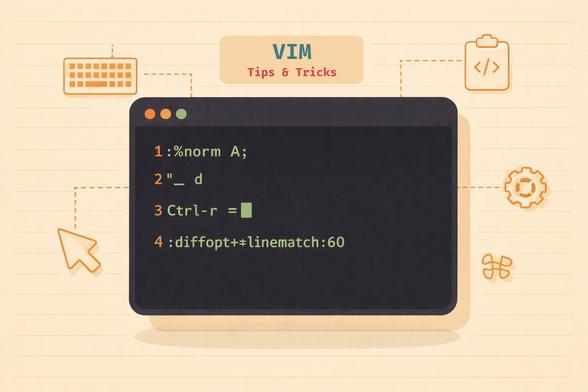
Stop editing at 10% of Vim's power. Master registers, :norm, fuzzy completion, linematch diff, and 16 more Vim tips and tricks. Tested on latest Vim 9.2.
Full guide here: https://ostechnix.com/vim-tricks/
Stop editing at 10% of Vim's power. Master registers, :norm, fuzzy completion, linematch diff, and 16 more Vim tips and tricks. Tested on latest Vim 9.2.
Full guide here: https://ostechnix.com/vim-tricks/
One of my favorite vim tricks for substitution for deleting the text within two brackets of any type and start typing:
Lets say you have this line:
`console.log("my text", [1, 2, 3])`
When your cursor is within that line,
ci" -> replace the text within double quotes
ci( -> replace the whole text between parenthesis
ci[ -> replace content of the array
Just completed the #vim tutorial
$ vimtutorial
Didn’t even know it existed until I stumbled across it in the help documents.
Some cool things I learned:
1. :set hls ic ismakes it so that when you search partial highlights are made as you type, case is ignored and results are all highlighted. super useful. Added to my .vimrc
2. ceCut to end of word Simple little command that I think I knew existed but never really absorbed until I actually read about it and practiced it.
I had been using dwi to accomplish the same thing: delete a word and insert.
3. CTRL_Gfind your location in a file.
4. :<partial command> CTRL_Dshow command options. Super helpful for when you are hunting for a special help doc.
5. :'<,'>w and :rselective write out and retrieve commands.
YOU CAN SAVE A SELECTED PART OF A FILE AS A NEW FILE.
Then, when you so desire, you can retrieve the contents of any file with the retrieve command and paste them under your cursor. 
6. <num>Gsame as :<line number>.
Jumps to a line in vim.
7. :!<shell command>Executes a shell command. I knew about this one. Still have yet to really try it. Might come in handy more often when writing Python  and I want to execute a file after editing it without opening a new terminal.
Altogether, I think it was time well spent.
What are your favorite #vimtricks ?
Copy to system clipboard from #vim guide:
1. In your ~/.vimrc set
set clipboard=unnamed
2. Open a file and yank whatever you want, in this example we yank lines 4 and 5 to system clipboard; in command mode, type 4,5y *
set ts=2
set sts=2
set sw=2
filetype off
filetype plugin indent on
syntax on
set expandtab
3. Profit
Paste anywhere you want
filetype off
filetype plugin indent on
And when you need the full completion madness in the command line, for example when you're editing complex Regular Expression statements, simply type `q:` from normal mode and you get the full Vim editing power in an editable command history window.
Simply type your command line statement (or select an older one) and press <CR> to execute the command line under the cursor. See :help q:
#Vim hint of the week (because I'm searching this regulary again):
You can insert the word under the cursor while in command mode with:
<CTRL-R><CTRL-W>
This comes in handy when you want to [s]ubstitute a word, without having it to retype again.
:%s/<CTRL-R><CTRL-W>/newWord/g
 Alavi | علوی

 Solinvictus
 Thomas Brand
 dubst3pp4 🎧️
 jartigag