I’ve been hearing about Octarine for a while. It’s one of those apps that people whose opinions I respect talk about with a certain level of admiration. After testing it as thoroughly as I’ve tested any app in a long time, I understand why.
https://appaddict.app/post/octarine-powerful-sophisticated-and-easy-to-use

I’ve been hearing about Octarine for a while. It’s one of those apps that people whose opinions I respect talk about with a certain level of admiration. After testing it as thoroughly as I’ve tested any app in a long time, I understand why. Octarine is a tool for creating, editing, and organizing text-based information using connected but independent documents: Markdown files. Without relying on plugins, it supports images, video, PDFs, and files created by other productivity apps. Those files can be linked inside Octarine but still open in their native applications. Octarine isn’t designed for a single purpose. It’s more like a flexible Markdown workspace you can adapt to several overlapping uses: • Journaling • Task management • Writing and long-form drafting • Math or science reference notes • Documentation • Personal knowledge management (PKM) • Project planning Setup Octarine is available for Windows, Linux, and macOS, but it’s not a heavy Electron app. The download is just over 30 MB, and it launches as fast as TextEdit; effectively instant. The interface is tab-based, similar to a web browser. It isn’t strictly native macOS UI, but it’s clean, responsive, and supports customizable themes. Installation on the Mac is simple: 1. Open the downloaded DMG 2. Drag Octarine.app into /Applications That’s it. When you launch it for the first time, Octarine asks you to open or create a Workspace. A workspace is simply a folder of Markdown files; either ones you create or notes that already exist somewhere on your Mac. Structure You can download, install, and configure Octarine in well under a minute and immediately start creating documents. A key design choice is that Octarine uses the filesystem directly. Your workspace is just a folder containing Markdown files with human-readable filenames. That means: • You can manage files directly in Finder • You can open them in any text editor • Octarine will immediately reflect changes made elsewhere I verified this by opening a note in Typora, adding a table, and watching it render instantly inside Octarine. Because everything lives in normal folders and Markdown files, syncing is straightforward. You can use: • iCloud Drive • Google Drive • Syncthing • GitHub repositories (built-in integration) The Git support also provides versioning for people who want a real audit trail for their notes. Like most PKM-oriented tools, Octarine supports wikilinks. Typing [[ opens a searchable list of notes in the workspace. If you bracket a title that doesn’t exist yet, Octarine offers to create the note. There’s also a knowledge graph showing connections between notes. Just remember: posting screenshots of your graph online costs you several internet credibility points. Formatting Most formatting tools are accessible through a slash command menu (/), which exposes a wide range of Markdown and extended elements: • Headers • Text styles (bold, italic, strikethrough) • Callouts • Code blocks • Mermaid diagrams • LaTeX • Dividers • Tables • Colored text • Dates • Links • Templates You could easily use Octarine purely as a writing tool. It’s a full Markdown editor with live rendering similar to apps like Typora. Under the hood, however, the file remains a plain text Markdown document. You can open it in BBEdit, import it into Obsidian, or process it with any other Markdown tool. Octarine also converts pasted HTML into Markdown, preserving elements such as headers, links, bullet lists, and text styles. Organization The left sidebar provides a file tree for navigating your workspace. Nested folders work exactly as you’d expect. When you attach files such as images or PDFs to a note, Octarine automatically creates folders to store them. Octarine also supports seven types of metadata, which can be used to organize and filter notes. The most powerful organizational feature is something called Views. “Views are dynamic, database-style tables that display notes based on filters, sorting rules, and custom columns.” Think of them as smart saved searches that update automatically as your notes change. Tagging is also well implemented. Tags are clickable throughout the interface, and a Tag Manager provides a centralized list of every tag in your workspace. AI Integration (Pro Version) Octarine includes optional AI integration. It works with: • Local models via Ollama and LM Studio • Apple Intelligence • Cloud APIs such as OpenAI, Anthropic, and Google Gemini AI operates within the context of the current note, allowing it to generate, rewrite, summarize, or refine content. Like most AI writing workflows, the real learning curve comes from developing reusable prompts that produce consistent results. Pro users can also download a 90 MB local model that can index an entire workspace to provide additional context-aware features: • Context indicators Each message shows the sources used (folders, notes, or date filters). Icons and hover cards reveal the details. • References A list shows which notes were consulted to answer your query. • Export options Responses can be copied as Markdown or plain text. • Chat titles Titles are generated automatically after the first response and can be edited using the Sparkles icon. • Save the chat Clicking the Create Note icon in the chat breadcrumb saves the conversation as a note. Your questions become blockquotes, with each Q&A pair separated by a divider. An Opinion on an Opinionated App There’s no question that Octarine is powerful. As someone who has spent years building PKM systems, I can appreciate how much functionality is available without needing plugins or complex setup. Many of the features Octarine includes by default require significant configuration in something like Obsidian. That simplicity removes a lot of early decisions that intimidate people exploring tools like this. Octarine is developed by a single developer, which might give some users pause. Personally, it doesn’t worry me much. Some of the most respected Mac utilities come from solo developers, including: • Keyboard Maestro • Hazel • BetterTouchTool • Rectangle Pro Looking at Octarine’s update history, development is clearly active and responsive to feedback. The changelog shows frequent updates, and the roadmap includes plans for: • iOS and Android versions • One-click publishing • Quick capture tools • Task-management improvements • Browser extensions …and quite a bit more. With the exception of AI features, most of Octarine’s functionality is available in the free version. The Pro license currently costs $70 (early-bird supporter pricing) and unlocks all current and future features. That isn’t cheap, but it’s roughly in line with other established writing tools like iA Writer ($69) or utilities such as TextSoap ($45). For users who want a structured Markdown workspace without the plugin rabbit hole, Octarine is definitely worth a serious look.
Today on AppAddict - Four Indie Mac Utilities That Quietly Improve Your Workflow - Independent developers continue to build some of the most thoughtful utilities on macOS. These are small, focused tools that solve real workflow problems instead of trying to become the next all-in-one productivity suite.
Here are a few that recently caught my attention.
StealthlyFor anyone whose workday involves frequent Zoom, Teams,... - https://appaddict.app/post/four-indie-mac-utilities-that-quietly-improve-your-workflow - #Mac #macOS #Apple #AppAddict

Today on AppAddict - My Stream Deck Setup for macOS Automation - I get a lot of use out of my Elgato Stream Deck. It’s one of the best hardware purchases I’ve made in a long time.
It didn’t start that way.
Shortly after I bought it, I discovered that the device falls under the privacy policy of its parent company, Corsair. The... - https://appaddict.app/post/my-stream-deck-setup-for-macos-automation - #Mac #macOS #Apple #AppAddict
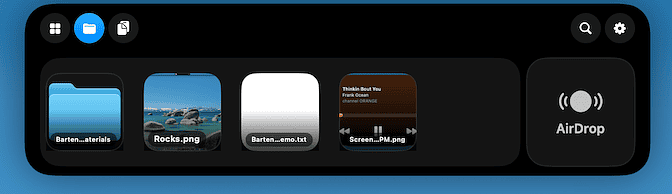
Today on AppAddict - Mac Menu Bar Chaos - Where We Are… And WhymacOS 26 (Tahoe) is now months into its lifespan. The UI chaos it caused for menu bar management apps has calmed down a bit, but the situation is still far from stable.
A combination of API limitations, OS-level redesigns, and tighter security controls broke many of the assumptions... - https://appaddict.app/post/mac-menu-bar-chaos - #Mac #macOS #Apple #AppAddict
Today on AppAddict - ScreenFloat is a Different Kind of Screenshot App - I only recently realized that my use of screenshots falls into two very different categories.
On one hand, I use screenshots to illustrate blog posts and social media. That usually amounts to two or three captures a day.
On the other hand, I take screenshots constantly for technical reasons; learning... - https://appaddict.app/post/screenfloat-is-a-different-kind-of-screenshot-app - #Mac #macOS #Apple #AppAddict
Today on AppAddict - Why I'm Ditching Third-Party File Managers - I’ve long been in the habit of using third-party file managers on macOS. I used Pathfinder for years, then switched to Qspace Pro a couple of years ago. I also bought Bloom during a Black Friday sale last year to see what it could do.
Recently, though, I’ve grown tired of paying the RAM... - https://appaddict.app/post/why-i-m-ditching-third-party-file-managers - #Mac #macOS #Apple #AppAddict
Today on AppAddict - NeoFinder: The Mac App That Makes Offline Drives Searchable - [Image]Why NeoFinder MattersNeoFinder is a macOS app that catalogs disks and media, creating a searchable database of your files no matter where they live: internal drives, external drives, NAS volumes, shared network drives, removable media (CDs, DVDs, USB drives), and even inside archives.
The real magic is its ability to... - https://appaddict.app/post/neofinder-the-mac-app-that-makes-offline-drives-searchable - #Mac #macOS #Apple #AppAddict