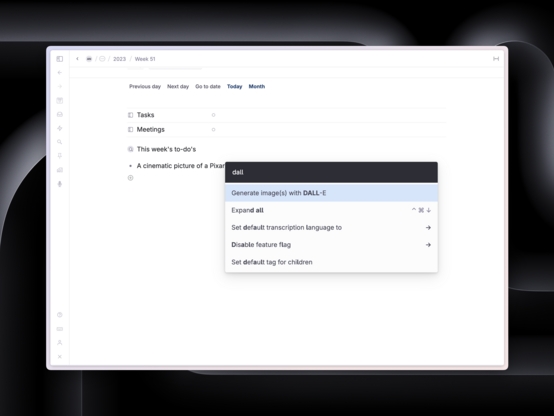
When you have activated the AI features in @tana_inc, you can generate images with AI super quick.
Simply go into the CMD+K menu and type "Generate image", it will take the content of the node you have selected as a prompt.


| Dreetje |
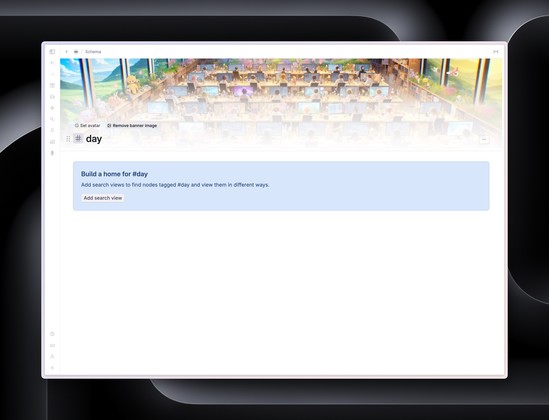
If you click any Supertag, and then right-click in the header, you can generate a banner for all nodes with that Supertag.
Hover over the header, and click "Remove banner image" to remove it agian. All of these allow you to make @tana_inc feel more yours visually.

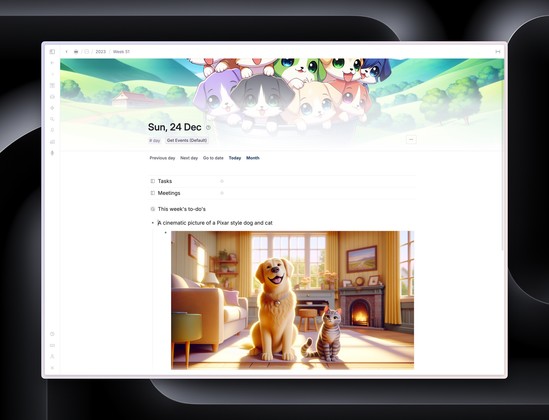


When you have activated the AI features in @tana_inc, you can generate images with AI super quick.
Simply go into the CMD+K menu and type "Generate image", it will take the content of the node you have selected as a prompt.
💡 Did you know @tana_inc has a featured called "Remind me"? CMD+K (or CTRL+K on Windows) and type "Remind me" and pick when.
A reference to the node you were on will show up on the daily page for that day. I use this for non-task related things, like quotes or ideas!


I also would like to change the order of the fields, you can do this by configuring the #meeting Supertag (right click, configure).
You can drag-and-drop the fields, or you can use the handy keyboard shortcut (that is useful all over @tana_inc):
CMD+SHIFT+↑ or CMD+SHIFT+↓

In my last thread, I showed how to pull in all your meetings from your MacOS calendar into @tana_inc.
But the end-result feels a bit much. I like my meetings tidy, and these contain a lot of info, I don't regularly use.


