If you find yourself scanning manuals or books for archival purposes, but you don't have a lot of time to fuss over the results (and you don't already have some fancy software that does this) - I can recommend ScanTailor.

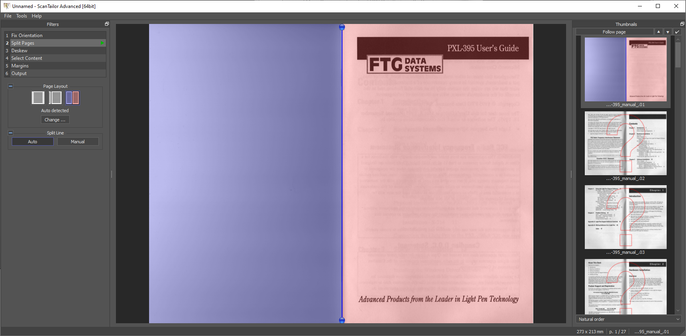
It has automatic page splitting, deskew and content centering.

https://github.com/4lex4/scantailor-advanced

This project has died and been ressurected a number of times - this particular fork has also been dead for 7 years, but it still seems to work fine.

There are a whole ton of forks of this thing and I can't keep track of which, if any, are the best current version. If you happen to know, please post a link in reply.

ScanTailor runs on a directory of images - it isn't going to scan or make a PDF for you.

That's where NAPS2 comes in. It will do the scanning, dump the files into a directory for ScanTailor to work on, then take the resulting images, and export it as PDF with OCR.

It's cool to have a completely free workflow for doing this.

https://www.naps2.com/

NAPS2 - Scan documents to PDF and more

NAPS2 is free scanner software made easy. Scan to PDF, edit your documents, and use advanced features like OCR. Available on Windows, Mac, and Linux.

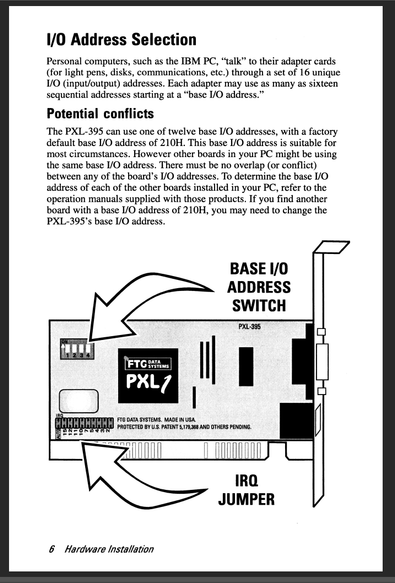
This manual is just your typical staple-bound thing. I dislike thresholded scans, I've squinted at way too many 1bpp scans of datasheets I wish the scanner had spent slightly more time and care on.

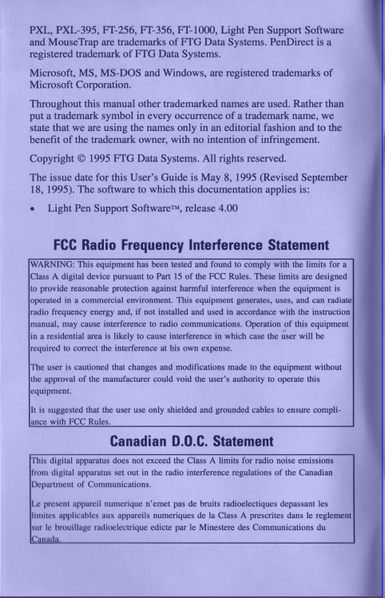
But when you scan in grayscale, you can get shadows at the edges where the binding "crease" is (idk the proper terminology).

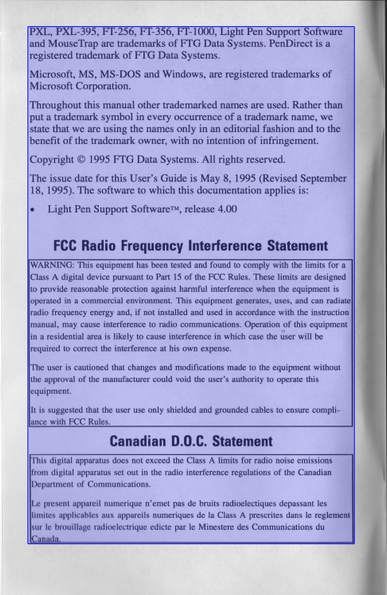
ScanTailor allows you to auto-detect content areas (which you will not want to blindly accept) but this allows you to perform post-processing with different parameters on content and non-content areas.

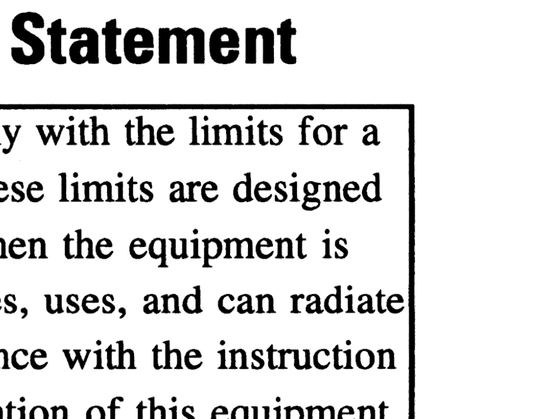
Here's the shadowy right side of that page after processing.

Settings are:

Mode: Color/Grayscale
Options: fill offcut, fill margins, equialize illumination
Filling: Background
Color operations: posterize: 32, normalize, force bw
Processing: Black on white mode (i believe this performs adaptive thresholding)

Looks good. ship it.

And the best thing is your PDF won't look like you used ABBYY Finereader.

Also - did you know you can un-fuck other people's scanned PDFs? It's true!

Use NAPS2 to dump all the images from a PDF to a directory. Fix their shit* in Scantailor, then make a fresh PDF in NAPS2 with the OCR they probably forgot to do as well.

*There is no fixing ABBYY Finereader

it is possible to mangle stuff using any software, so i'm perhaps giving ABBYY a hard time here. It is a tool and it's up to the user to choose what options to use. When you're scanning literally thousands of documents, you may have considerations for disk space that I do not. If I want a 300MB light pen PDF, I've got the space.

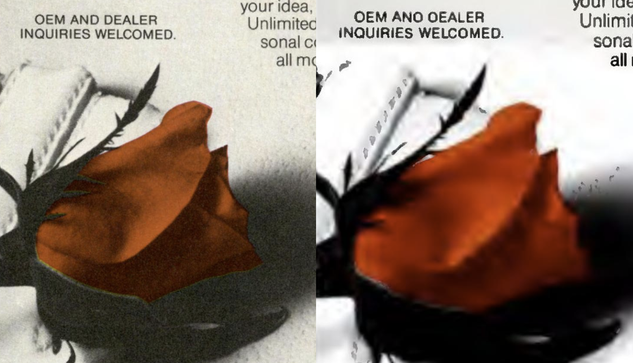
But ... just look at this. Here's a normal scan on the left, and whatever the heck is going on on the right.

I don't want to sound like I am not grateful for these scans - I know it was a lot of time and effort that someone didn't have to do, that I paid nothing for, that lets me peer back into history and do all my research for stupid light pen articles.

But I'm still gonna be a little salty about it
Also that was the 'D'-iest D that ever D'd so I am not sure how OCR failed to read "DEALER".

... but what is the OCR doing REWRITING THE TEXT???

as far as i can tell this is some absolutely cursed compression scheme where it literally segments the image into layers, and replaces the scanned text with vector outlines / similar fonts, while giving everything left behind in the background the 1994 Netscape JPEG experience.

You can't restore the original image, either. If you try to dump the images there are just holes there now.

I love how my whole posting style has devolved into "post something interesting, then go on some tangental rant".

if you are still following me, bless your soul.

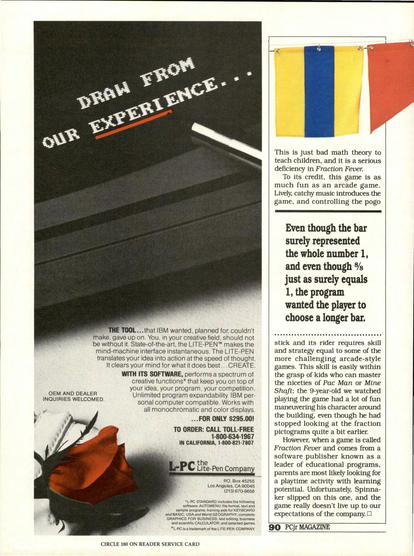
Here's the full ad.

I enjoy the shade they throw at IBM here. Go on, L-PC, tell 'em.

The settings i provided above handle illustrations and grayscale printing / halftone pretty well as well, but you might want to tweak some things on graphics heavy pages.
The final result is a 52-page 600 DPI PDF weighing in at 27MB. I think that's reasonable. If your only concern was readability, 300 or even 150 DPI would be fine. 600 dpi just lets you print out a fairly convincing replacement manual if you wanted.

A final addendum for @thalia and others who may be interested in resampling the final result.

Ghostscript can resample all the images in a PDF in one command while preserving the OCR.

Here's how you'd resample to 300 DPI, while ensuring all images are grayscale or b&w (if you have color images, you will need to adjust things)

gs -sDEVICE=pdfwrite
-dNOPAUSE -dBATCH -dQUIET
-sColorConversionStrategy=Gray
-dProcessColorModel=/DeviceGray
-dOverrideICC=true
-dDownsampleColorImages=true
-dDownsampleGrayImages=true
-dColorImageResolution=300
-dGrayImageResolution=300
-dColorImageDownsampleType=/Bicubic
-dGrayImageDownsampleType=/Bicubic
-dAutoFilterGrayImages=false
-dGrayImageFilter=/FlateEncode
-sOutputFile="out.pdf"
"in.pdf"

@thalia

if the file size does not appreciably change, your view boxes are probably screwed up - DPI can only be calculated from the view box / dimensions.

Just check the that the dimensions of your PDF match what you scanned.

If you need to adjust the view box, you can do so with this command:

gs -sDEVICE=pdfwrite
-dNOPAUSE -dBATCH -dQUIET
-dPDFFitPage
-dDEVICEWIDTHPOINTS=396
-dDEVICEHEIGHTPOINTS=612
-sOutputFile="out.pdf"
"in.pdf"

Calculate the points for your image by dividing inches by 72.

Once the view boxes are corrected the previous resampling command should actually do something.

@thalia

this might not actually change the file size as much as you'd think - since we posterized to 32, there's not a lot of noise. So the only entropy is on the edges of text glyphs - all the white space on the page might as well compress perfectly.

Resampling to 300DPI takes this example from 27MB to 21MB.

@thalia

here's a simple python script that will dump the image info from a PDF. this can be useful because sometimes its hard to tell what DPI things are.

https://gist.github.com/dbalsom/74258d43069f523df0bbc3249da92e5f

Get image DPI info from PDF file

Get image DPI info from PDF file. GitHub Gist: instantly share code, notes, and snippets.

Gist
@gloriouscow Nice. I’ve been using pdfinfo, which doesn’t give all these details, though I see it’s got more flags than I’ve been using.
@gloriouscow Thanks! I’ve been enjoying your light pen exploration too!
@gloriouscow I've been scanning my manuals at 600dpi grayscale. This is fine for the Internet Archive, which serves resized images by page, but they're much larger than what usually goes on Bitsavers, so I want to postprocess them to B/W and possibly downscale to 300dpi. Know of a good CLI tool for this?

@thalia

I don't know of a single tool. I probably end up duplicating a lot of existing tools with python scripts

i do use img2pdf a lot as otherwise you can find your indexed tif's have turned into jpegs somewhere along the line.

I would be thinking about doing a script that does pdfimages -> imagemagick -> img2pdf -> ocrmypdf

@thalia just doing some googling here, it looks like you could one-shot this with GhostScript, but that is one of those elder utilities bristling with enough command line arguments to kill a horse.

pdftocairo might be worth looking at too

@gloriouscow
Following? I'm wondering if we're in the same neck of the woods so i can buy you a drink to hear more about how corporate OCR software sucks. I'm tired of my own problems, and this is great confirmation bias for me!