
I’ve spent a few evenings over the past two weeks building a fun Mac app 👨‍💻

While editing text in any app, I can press a shortcut to open a panel and pick a saved command which will use AI to transform the text. For one-off commands, I simply type instructions into the panel.
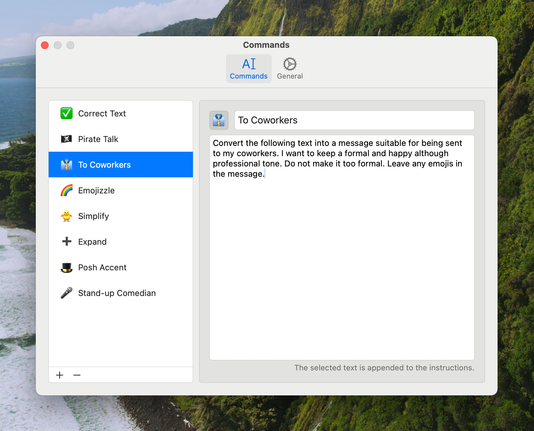
Here are the commands I've saved so far 👇
With this text transformation, I wanted the resulting text to be a bit over the top to showcase the app. However, I've found that, with the right instructions, the AI can generate text that maintains the original tone of voice, so it doesn't sound so robotic.
One thing I spent (way) too long on was making the panel appear near the text input I’m typing into. I managed to do it using the Accessibility API, but it was surprisingly difficult to get it working somewhat (somewhat) well enough 😄
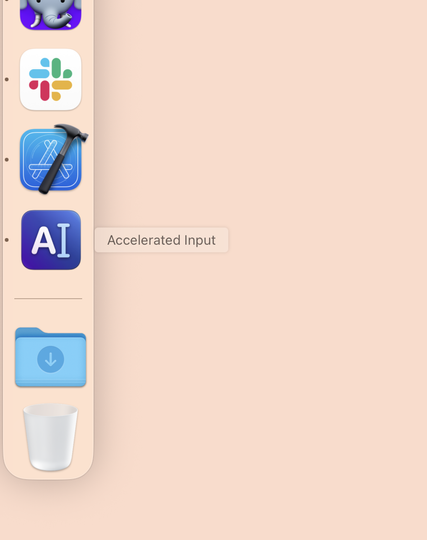
Quite pleased with this icon for my app 😃
Took another swing at the effect shown while running a command and built it using SwiftUI mesh gradients. I think this is 💯% better.
Working on the onboarding flow for my new Mac app and I think I've got the first screen pinned down. It was a great excuse to have some fun with SwiftUI mesh gradients 😄
Cute little view to illustrate a keyboard shortcut 😃
Wrapped up the three screens that'll make up the onboarding flow of my little Mac app and while I'm sure there's room for improvement, this is pretty close to what I was hoping for 😃
@simonbs Nice pixels!