Aptivi
Installing Mageia Linux 10 RC1 on VMware Workstation
The first release candidate of Mageia Linux 10 was announced yesterday, and it brought some awesome lock screen pictures, along with some updated packages, such as the Linux kernel. This release candidate was released after the beta version to add in some improvements. Mageia Linux was released as a fork of Mandriva Linux, which is a successor of Mandrake Linux.
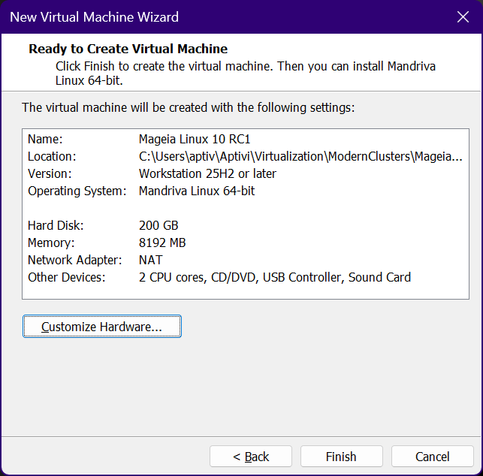
In this article, we will showcase how to install Mageia Linux 10 RC1 to a VMware installation. First, we will configure the virtual machine as follows:
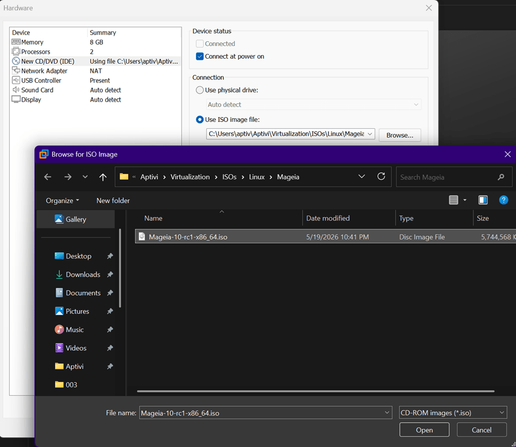
After that, open the virtual machine settings, navigate to New CD/DVD, and select the Mageia ISO file.
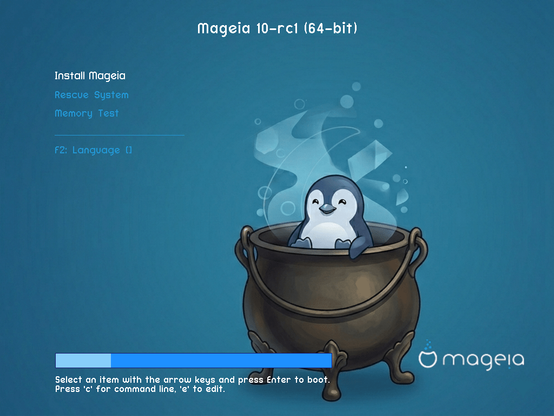
Then, we’ll go ahead and turn on the virtual machine. We’re greeted with a rather nice GRUB boot screen.
As soon as we press ENTER, the Mageia installer starts with this:
After that, the GUI version of the Mageia installer starts, asking us for a language to use.
After that, we’re greeted with the license agreement.
After the license agreement, you can choose the timezone. The default selection is New York.
After that, you can configure the clock, including the hardware clock configuration (local time or UTC), and choosing whether to sync with NTP server or not.
Then, you can choose the keyboard layout.
Now, we get into the partitioning stage. You can choose either the guided partitioning or custom partitioning. As we have no installed operating systems, we can choose to use the whole disk.
Media selection comes after the partitioning stage in the installer. The installer has automatically selected both the Core Release and the Nonfree Release media. Currently, we’ll be installing the base system entirely from the installation ISO file.
After this stage, the installer provides us with options for the desktop environment, with KDE as the default. We have chosen to go with the KDE Plasma environment.
Afterwards, the installation begins.
When the installation finishes, the user configuration comes afterwards. You can set the root password, the username of your account, and the password.
Afterwards, the display configuration comes. The installer asks us to choose a monitor. As we’re on a virtual machine, this is likely not relevant. So, we kept it at Plug-n-Play.
As soon as we go to the next step, the installer shows you the summary of the system configuration, just like below:
Before the configuration finishes, the installer asks us if we want to configure the online media. We have approved it. Then, we allowed the installer to automatically choose the best mirror and download method available.
After that, the installer is now finished.
Then, we let the system reboot to the GRUB menu.
We let the system boot to the simplistic-looking login screen.
After we log in to the newly-created account, we’re presented with a desktop and a welcome window.
Awesome! Now we’re on the Mageia Desktop!
We have checked for available package updates by going to the Update screen. It shows a list of packages that were available for updating.
We have selected all the packages to upgrade them. As soon as we clicked on Update, the software update manager starts downloading package files and installing them to the system.
Afterwards, we have restarted the virtual machine for the new kernel to be used.
Lock screen wallpapers
The Mageia 10 RC1 announcement has stated that there are awesome screensavers included in the release candidate. However, it was actually referring to the lock screen wallpapers.
You can find those 20 wallpapers (found in /usr/share/mga/screensaver) through the lock screen settings.
Once you apply the changes, you can now see the login screen with one of the 20 lock screen wallpapers chosen.
#Linux #Mageia #Mageia10 #Mageia10RC1 #MageiaLinux #MageiaLinux10 #MageiaLinux10RC1 #news #Tech #Technology #update #VMware #VMwareWorkstation #VMwareWorkstation26H1 #VMwareWorkstationPro