 windowsCult
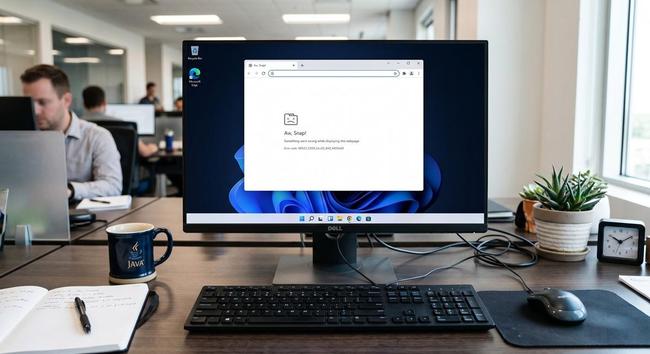
The "Aw, Snap!" error means a webpage crashed or failed to load. To fix it quickly, refresh the page, check your internet connection, clear your browser cache, or update your browser.
Quick Fixes: https://windows101tricks.com/fix-aw-snap-something-went-wrong-google-chrome/
Reload: Press Ctrl+F5 (Windows) or Cmd+Shift+R (Mac) to do a hard refresh.
Check Internet: Ensure your device is online by visiting another website or resetting your router.
Test Incognito: Open an incognito window and try loading the page. If it loads, the issue is likely caused by an extension or cached data.
Disable Extensions: Open your extensions page (chrome://extensions/) and turn off recently installed or third-party extensions to check for conflicts.
Clear Cache & Cookies: Open Chrome settings, go to Privacy and security, and select Clear browsing data.
Update Chrome: Go to the three dots, click Settings, and select About Chrome. Make sure the browser is fully updated to the latest version.
Manage Hardware Acceleration: Go to Settings -> System. Try turning Hardware Acceleration on or off (whichever it is currently set to) and relaunching the browser
 Orion
Orion Izoate